Introduction
Screen recording, also known as screencasting, is a valuable tool in teaching and learning. An essential element of the Flipped Model of learning, screencast videos provide both a dynamic and personalized learning experience for students, freeing up classroom time for valuable problem-based collaboration.
Screenpal is a web-based alternative to expensive screencasting software. It is a quick and easy way to screenrecord a variety of media presentations including microlectures, voice-over MS PowerPoint/Keynote, tutorials, demos, basic webcam capture, etc.
The software must be accessed via our license URL: https://screenpal.com/mesacc
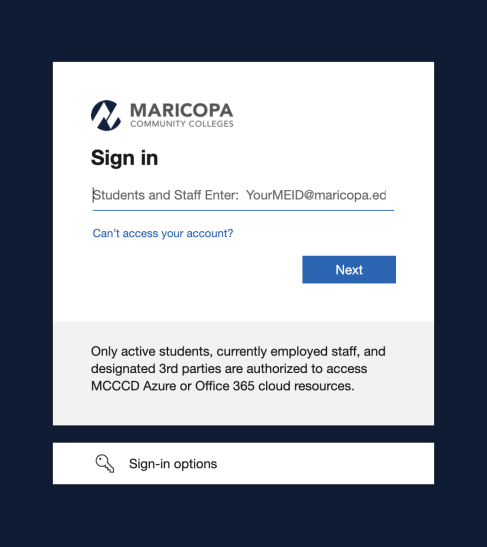
Accessing this page will present the MCCCD Dual Factor Authentication Screen. If you don’t already have an account using this method of logging in will provision you with an account.
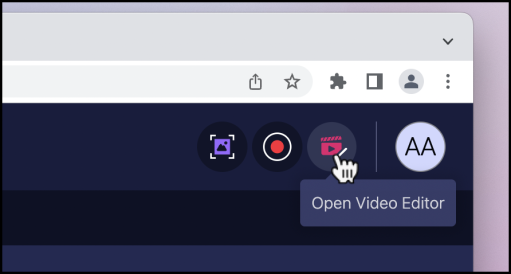
Once signed in, you will need to install/launch the software. If you are on a personally owned computer you can do this by clicking either the Screen Recorder Icon or the Edit Video icon at the top right of the page:
This will bring up a banner at the bottom of the screen. Click on the ‘Download app’ link to begin the software install/launch process

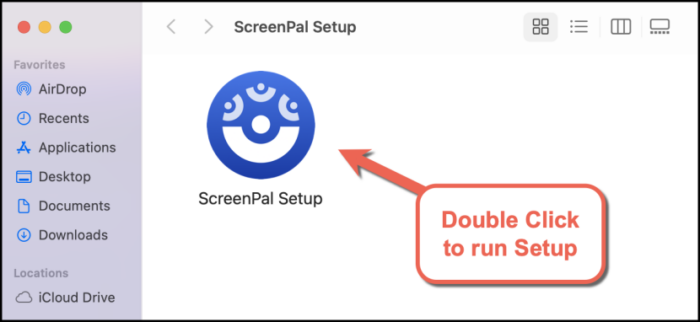
The software install will require an executable software install package to be downloaded. The type of file downloaded will automatically detect which type of computer you are using (macOS or Windows). This process demonstrated is using a Macintosh OS (macOS). First find the file that it downloads and click on it to launch the installer:

Next, run the installer package:
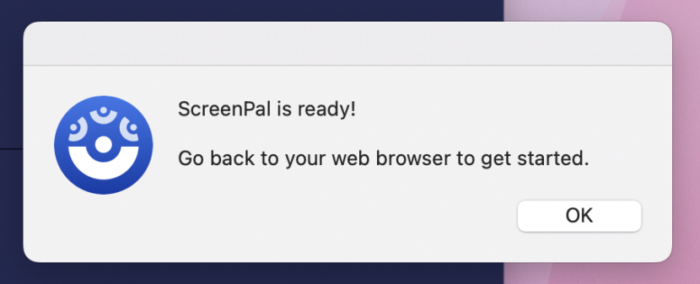
Once the setup has finished it will display a message:
Returning to the ScreenPal page, the banner at the bottom of the page now has a link to relaunch the newly installed software package:

Launching ScreenPal in this way will ensure that any new features or updates to the software will be present.
Here is the process with a Windows computer. Using the launch Screen recorder link in the upper right hand side of the page after logging in with dual factor authentication the download will be an executable file:
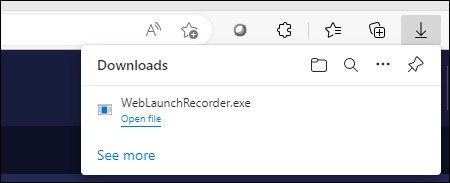
The process for installing it is the same. The file needs to be executed by double clicking on it in Windows Explorer:
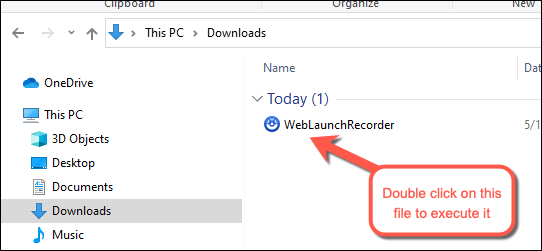
Once installed the software needs to be relaunched from the web page banner in the same way.
The process for getting the ScreenPal recorder and video editing software to function on a MCC managed desktop computer requires Software Center for Windows PCs and Self Service for macOS
Quick Tutorial Videos
Screenpal Tutorials:
- Basic Recording
- Intro to Editing
- Insert More (Editing)
- Replace Video (Editing)
- Add Overlay (Editing – Text, Annotations)
- Save Video to File (MP4)
- Upload Video to ScreenPal Hosting
Adding Video Files to Canvas:
- Adding Video to a Content Page in Canvas
- Sharing Video hosted on ScreenPal
- Connecting Video Files to Modules
Screenpal Stories/Scripted Recording Tool
Stories/Scripts is a tool to help you create stories and scripts to record, edit and caption for your video projects within ScreenPal. Learn more about the Stories and Scripts Feature.
Help
For assistance or training on how to use the software please contact the Center for Teaching and Learning Department via email at [email protected] or call 480-461-7331.